How it works
A party in eight steps
From the first idea to the thank-you: what you do, when you do it, and what letsparty does for you. For every feature and the plan it comes with, see Features and Pricing.
-
The day you have the idea
Answer five questions
What you’re celebrating, when, where, the look and the details, one at a time, with the real invite taking shape beside them.
- The wording writes itself for the occasion, and you can change every word
- No date yet? Start with a date poll and let guests vote
- Host all year? Your year lays out the birthdays and holidays ahead
In the appPlan a party
Plan your first party →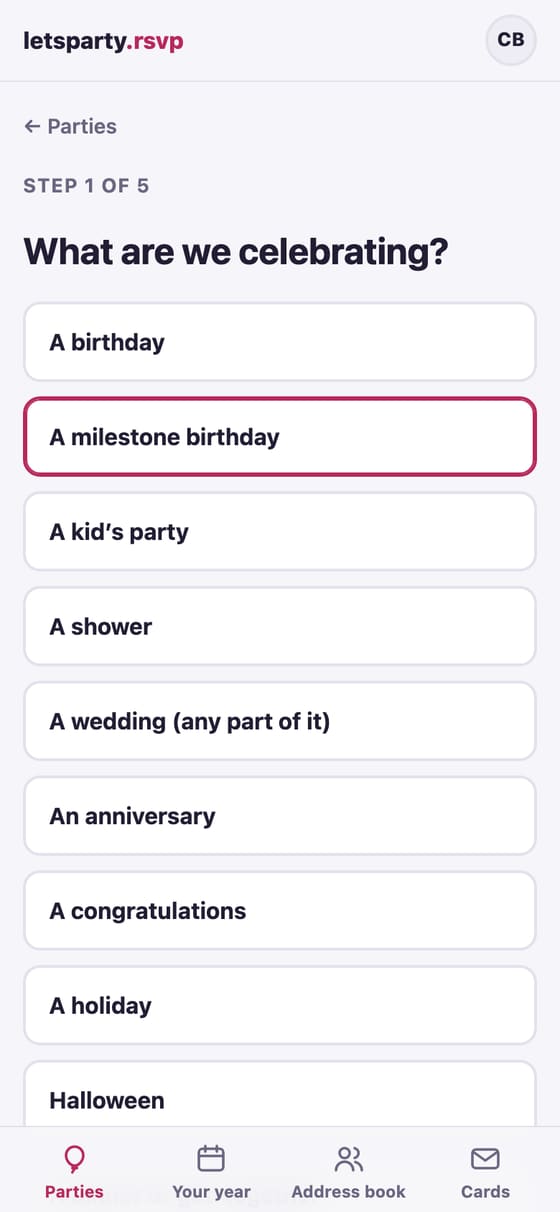
-
Same sitting, ten minutes
Pick a look, add your photo
Designs from funny to formal, in collections for birthdays, weddings, anniversaries and every season’s holidays. Some put your photo right on the card.
- Pick how it opens: an envelope with their name on it, a gift box, a ticket, candles to blow out
- Add music as it opens and confetti, petals or snow after
- Or upload your own art, with colors picked from your picture
- The preview is the real invite, not a mock-up



-
Once, then for every party
Your guests, by household
Import your phone’s contacts or a spreadsheet, then put couples and families together so each household gets one invite.
- Guests confirm their own address and phone
- Lists like Cousins or Book club add everyone at once
- A class or a team? One join link, and each family adds itself
In the appImportAdd someoneMake a join link
Build your address book →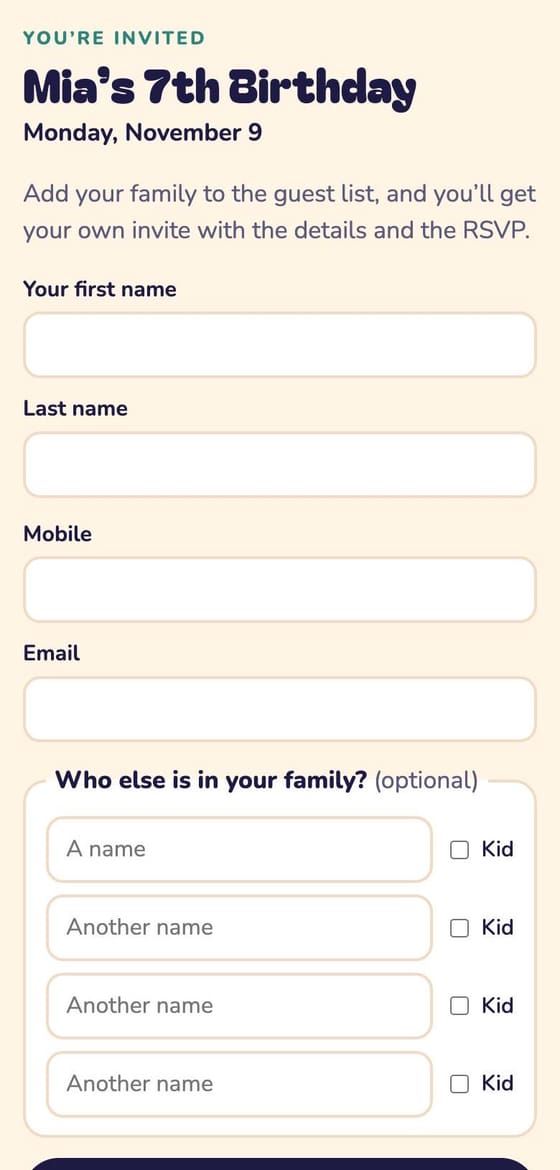
-
Three to six weeks before
Send it from your own phone
Each household gets its own link, texted from your number so they actually open it, or emailed with your name on it.
- On iPhone, one tap texts everyone after a one-time setup; on any phone, one at a time
- Their name on the envelope, with a stamp and a postmark
- In English or Spanish, for the party or one household
- Only the guests you invite ever see the address
In the appPick guests from the address bookTextEmail invite
Send your invites → How texting from your phone works →

-
Until your RSVP-by date
Watch the answers come in
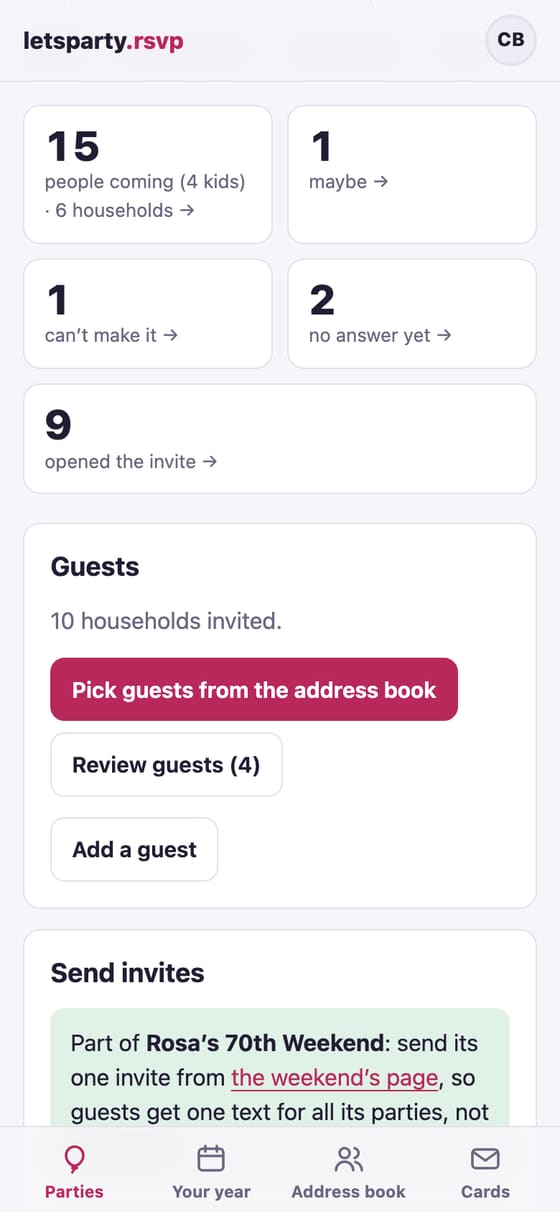
Yes, maybe or can’t make it, by name, with a meal choice or allergies for each person. Tap any number to see exactly who.
- See who has opened the invite and who hasn’t
- Nudge whoever hasn’t answered; the yeses get a reminder before the day
- Plans changed? One update reaches everyone
In the appNudgeSend an update
Track your RSVPs →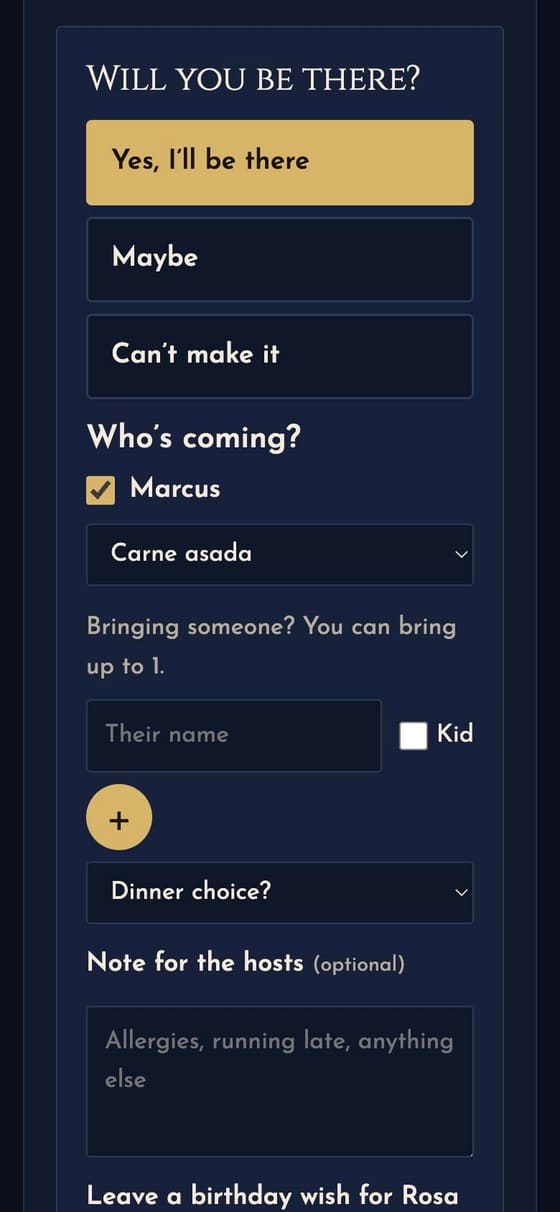
-
The week of
Hand the venue a headcount
A live headcount and meal choices for the restaurant or caterer, with no names and no sign-in.
- Room for 40? Past the limit, yeses join a waitlist you control
- A what-to-bring sign-up keeps the dishes balanced
- A seating chart, and each guest’s table on their invite
- Print a headcount sheet with everyone’s notes
In the appMake a caterer linkSeating chartHeadcount sheet
Food sign-up, head counts and the caterer link →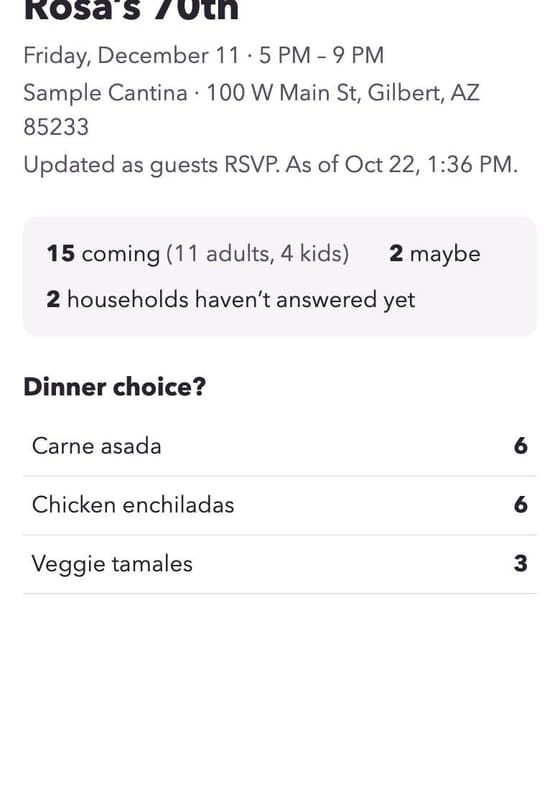
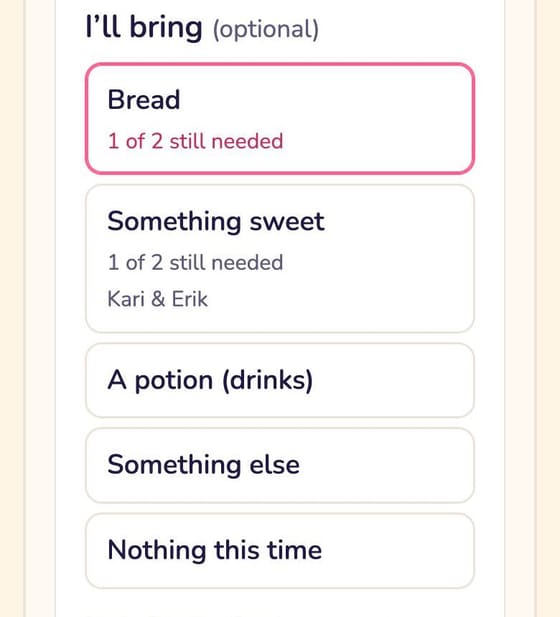
-
The day of
Everything guests need, on the invite
The schedule, the forecast, parking notes and who’s coming, plus a photo wall that fills up as the party goes.
- Selfies show who’s coming, in the design’s own style
- Guests ask a question; you answer once, for everyone
- Check guests in at the door from your phone
- A QR sign on the table, and a slideshow for the TV
In the appCheck-inPrint the table signSlideshow for the TV
Guest extras →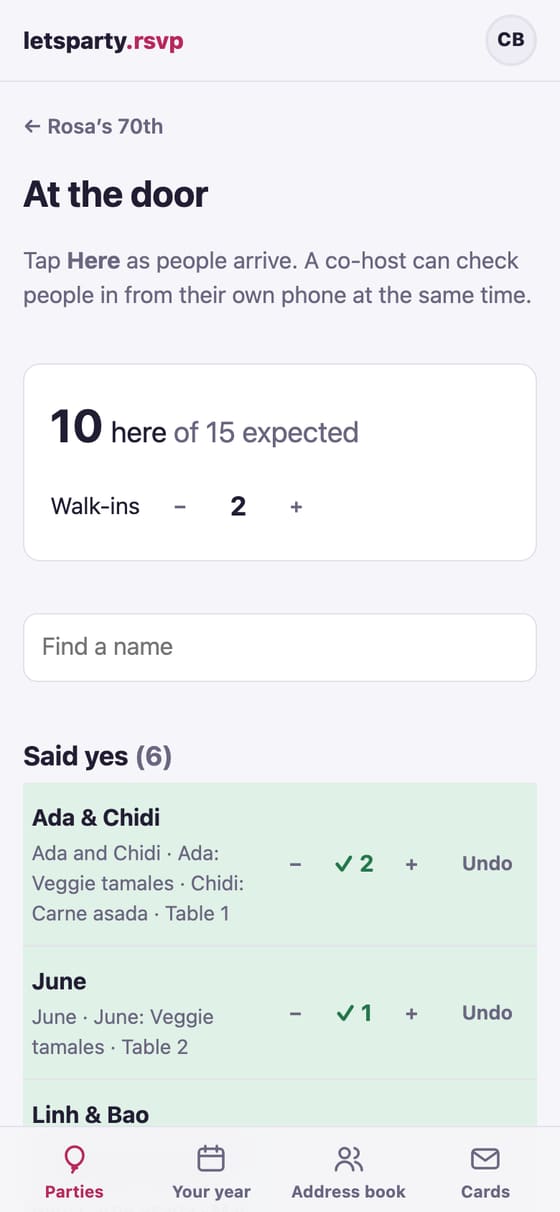
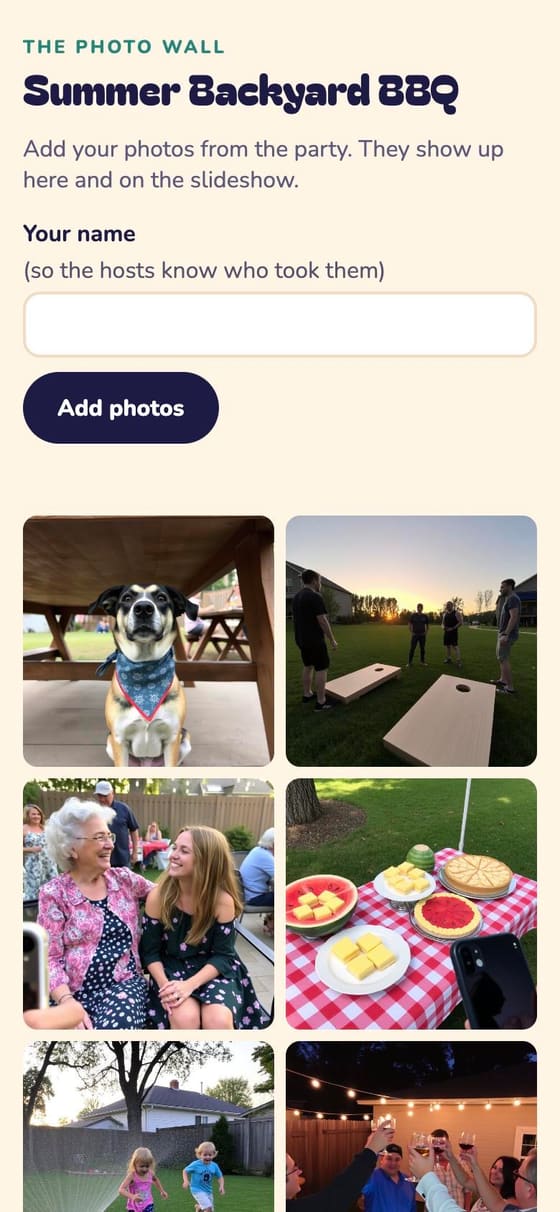
-
The day after
Say thanks, keep the memories
A thank-you to everyone who came, the wishes to print, every photo in one place, and next year’s party already started.
- Print the guests’ wishes as a keepsake
- Hide any photo you’d rather not keep
- Copy the party, guest list and all, for next year
In the appSend a thank-youCopy party
After the party →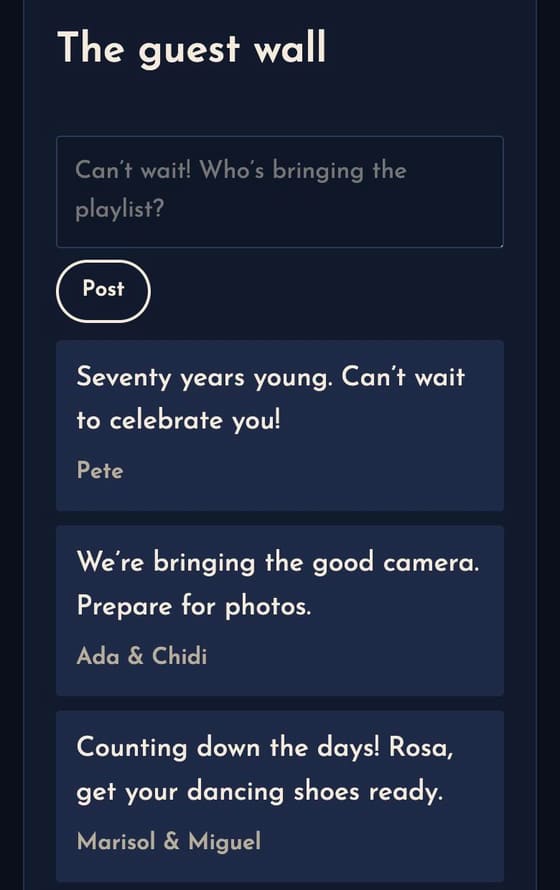




Coming soon
The busywork, handled
Helpers for the parts of hosting nobody enjoys. You check everything before it counts.
-
RSVPs from the group chat
People answered in a text thread instead? Share a screenshot and letsparty reads who’s coming, matched to your guest list for you to check.
-
Answers from your details
When a guest asks something your party details already answer, they get the answer right away. Anything else comes to you.
-
“Write it for me”
Jot a few notes and get the invite details in three tones, one tap to use.
-
A check on every photo
Uploaded photos get a quick look before they show, and every photo gets a short description for guests who use a screen reader. You can hide any photo at any time.
-
Thank-you notes, drafted
A personal line on each household’s thank-you card, drafted from what they brought, wished or said, for you to read and change before you send.
-
Video wishesComing soon
Guests record a short video wish on their invite, and you play them one after another as a tribute at the party, full screen.
-
A design from your own words
Describe the look you want (“watercolor sunflowers on cream”, “a race car on a track at sunset”) and get art made for your party, with the colors matched to it for you. The party helper makes it too: ask it for a picture and pick from three.
Your next party starts here
We’re opening to new hosts a few at a time.