Guide 19 of 21
After the party: keepsake wishes, thank-yous and next year
Print the wishes, notes and photos as a keepsake, thank everyone who came, and start next year's party from this one.
The best parts of a party are what people said and the pictures they took. letsparty keeps both, and the guest list too.
Ask for wishes before the party
In Edit details, fill in Ask for a note to keep, like “Leave a birthday wish for Rosa” or “Share a wish or some advice for Sam & Alex”. Guests see it on their RSVP, and only hosts see the answers. A guest who can’t come is offered the same question, so their note goes in the keepsake too. For birthdays, showers, graduations and other milestones, the planner’s last step offers one: Ask guests for a keepsake note (only you see them).
Wishes show on the guest list as they come in.
Print the keepsake
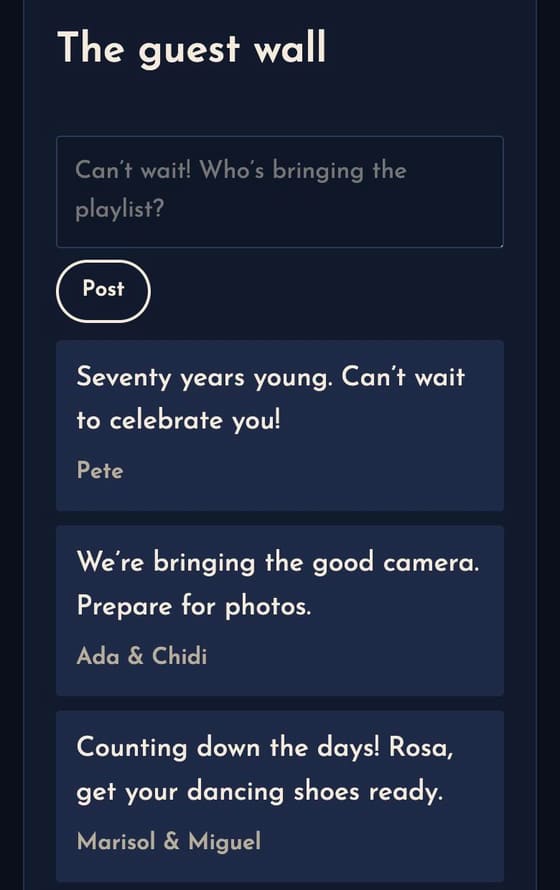
On the party page, Wishes (12) (or Keepsake, if you didn’t ask for wishes but have the guest wall or photo wall on) opens a page made for paper: every wish with the guest’s name, then the guest wall’s notes, then the photos. Anything you hid stays out. Tap Print, or save it as a PDF from the print window, and give it to the guest of honor.
Send a thank-you
Once the party has started, Send an update shows a Send a thank-you button. It writes one for you (“Thank you so much for coming…”), addressed to Checked in at the door if you used check-in, or to Came (said yes) if you didn’t, so the maybes don’t get one. Without check-in, if anyone who said yes didn’t make it, mark them Can’t make it first (Update beside their name). Then tap Send update, by email, text or both.
Send thank-you cards
For something more than a message, Send thank-you cards (beside Send a thank-you) makes a card for everyone who said yes: a design that opens like an envelope with their name on it, your words, and a line just for each household if you like (“Thanks for the amazing pie!”). Pick the look, tap Save, then Email it to 12, or Text each one from your phone. With the AI helpers on, Draft a line for each writes those lines for you from what each household brought, wished or said on their RSVP. Lines you already wrote stay as they are; read the drafts and change any before you send. See it as they will shows the card first, and the list shows who has opened theirs.
The same Cards page (from Parties, or Send a card on anyone in the address book) makes birthday, anniversary, holiday, congratulations and thinking-of-you cards. A card can carry up to three photos above the message (the family photo on a holiday card: Add photos under Photos), and a gift link: a button to a registry, a payment app or a gift card you bought somewhere else.
For a card from everyone (a birthday, a retirement), Let others sign it gives you a link to share: each person adds their name and a note, and the card shows them all. To text cards from your iPhone along with your invites, tap Text 12 with the iPhone Shortcut.
Writing cards by hand? Download CSV on the guest list has what each household brought and wished, and the address book’s Holiday card list has mailing addresses.
The party wraps
Three days after it ends, the party is marked Wrapped: links still open, but RSVPs close. It moves to Past parties on Parties, and the guest list, photos and keepsake stay.
Next year, already started
- Copy party at the top of the party page makes a new draft with the same details, design, art, wording, sections and food list (photos stay with the first party). Copy the guest list too is ticked; tap Make a copy, then give it a name, link ending and date, and tap Save changes.
- For a birthday or a holiday you host, Your year drafts it again when the time comes. If this party was drafted there, next year’s brings last time’s guests along.