Guide 10 of 21
Send your invites
Text every household from your own phone, email them, or both. Each household gets its own link.
Every household gets its own link: it greets them by name, shows the address, and takes their RSVP. You choose how the link reaches them.
Before you send
- Make the party live. A draft’s links don’t open, so the send buttons wait until you tap Make it live on the party page.
- Add guests with Pick guests from the address book, or Add a guest for someone new.
- Tap Email me a test to get the invite exactly as a guest would, even while the party is a draft.
Review guests first
On the party page, Review guests goes through everyone you picked and flags what usually goes wrong with a phone’s contacts: one person where a couple should be (tap Add someone and type a first name, or Just them if they’re coming alone), a name guests shouldn’t see on an envelope (set the name they’ll see instead), the same family split across two households (Combine), and anyone with no phone or email. Fixes show on their invite right away, even one already sent. Tap Looks good when you’re done. If it found something, a party’s first invites wait until you’ve looked: the send buttons (and the iPhone Shortcut) hold them until then.
Texts from your own phone
Texts from someone they know get opened, so invites go out from your number, not a stranger’s.
On an iPhone, all at once. The first time, the party page offers Add the Shortcut: tap it, and tap Add Shortcut when it opens in Apple’s Shortcuts app (built into every iPhone; nothing to buy). After that, Send 12 texts from this iPhone on the party page texts every household that’s waiting from your number, after asking first. The first time, your iPhone asks to let it send messages: choose Always Allow. Anyone already texted is skipped, so send again whenever you add guests. (Settings → On your phone has it too.)
On any phone, one at a time. Each guest on the guest list has a Text button that opens a text to them with the invite written for you.
To change the wording, edit Text message under Sending in Edit details.
Emails
On the party page, Email 12 households (it shows your number) emails every household that has an email address and hasn’t been emailed yet. Emails come from your first names (or the Hosted by name you set), with the party’s picture at the top. To send just one, tap Email invite beside that guest (Email again resends it).
If an email bounces, the guest is flagged on the guest list and you get one note saying who to text instead.
Any other way
Copy link beside a guest copies their personal link to send however you like. The party’s own page (Share the party page) shows the look, the date and the place name, never the address, and asks visitors to use their personal link to RSVP.
A weekend of parties, one invite
For a wedding weekend or a reunion, set up each party as usual (the rehearsal dinner, the wedding, the brunch), each with its own guest list. On the first one’s page, tap Make it a weekend, then add the others under Its parties. Each household gets one link to the parties they’re invited to, and answers each one on its own invite (meal choices and all). Send it from the weekend’s page: Email the invite to 40, or Text each one. The Shortcut sends the weekend’s text in place of each party’s, so nobody gets three texts.
To make it a matching set, use One look for everything on the weekend’s page: pick the party whose design you love, and every party’s invite, the weekend’s cover and the wedding website take it (its opening, music and effect too, if you like). Thank-you cards from a party start in its design, and the QR sign, the seating chart and the list for the door print in its type and colors.
What guests get
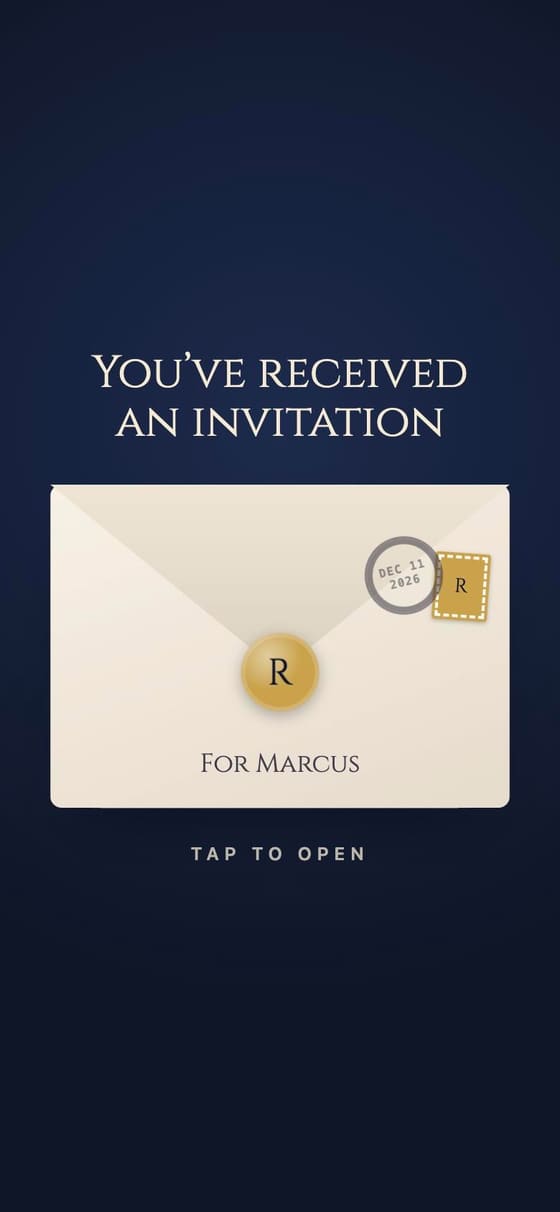
The invite opens like an envelope with their name on it. Inside: a Larger text button, the time in their own time zone if they’re somewhere else, map buttons for directions, and buttons to add the party to their calendar, or to keep every party from you in their calendar at once.
In Edit details, What to wear shows beside the date and place, and Links for guests adds buttons for the registry, the hotel block or your wedding website.
Invitations in Spanish
Pick Español for the party in Edit details, or for one household in the address book, and the invite, its opening, the texts and the emails come in Spanish: see Send invitations in Spanish.
After they’re sent
The guest list shows who was texted, who was emailed, who opened the invite and who answered. Next: track your RSVPs.
Next guide Add sections to your invite →