Guide 18 of 21
Set up the photo wall
Everyone's photos from the party in one place, a QR sign for the table, and a live slideshow for the TV.
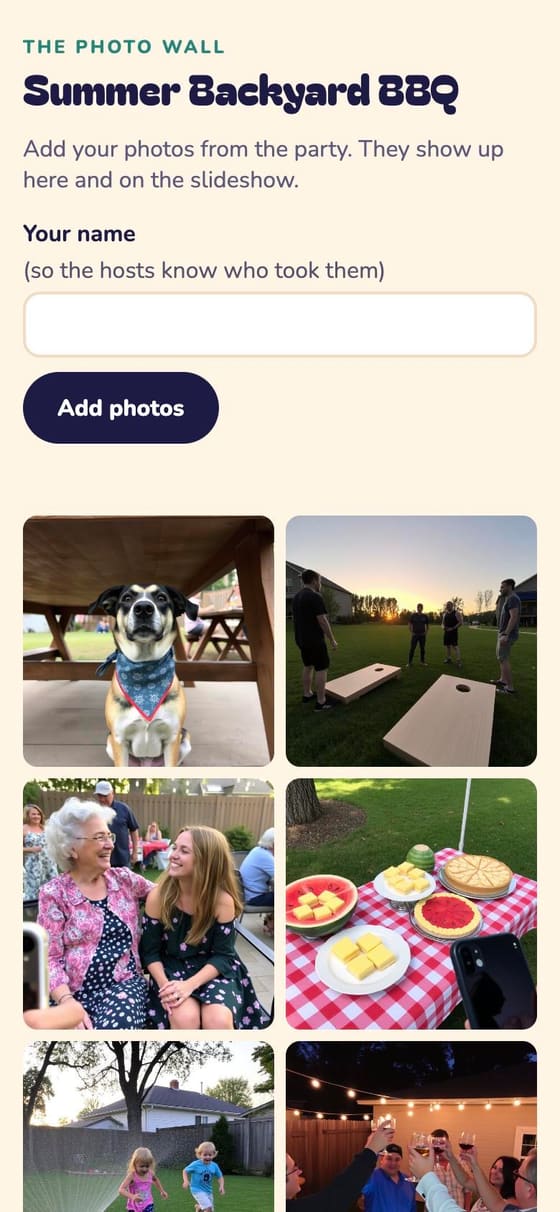
The photo wall collects everyone’s pictures from the party: from their invite, or by scanning a sign on the table.
1. Turn it on
In Edit details, under Guests together, tick A photo wall, and tap Save changes.
2. Put out the sign
On the party page, under Photo wall, tap Print the table sign, then Print. Anyone at the party can scan it and add photos, no invite needed, with their name if they like so you know who took them. The sign works once the party is live.
3. Show the slideshow
Open Slideshow for the TV on a laptop or smart TV. New photos join the show as they’re added.
4. Keep it nice
Manage photos shows them all. Hide it takes one off the wall and the slideshow, and Show it again puts it back. The wall holds up to 100 photos.
Guests add theirs from the invite
Every invite gets a Photos section with Add photos (or See them all and add yours once some are up). After the party, the photos also go in the printable keepsake.
While you’re there
The same section of Edit details turns on selfies with the RSVP, questions for the hosts and the guest wall: see Guest extras.
Next guide After the party: keepsake wishes, thank-yous and next year →