Guide 9 of 21
Invite a class or a team
Post one join link in the class or team chat. Each family adds itself to the guest list and gets its own invite.
For a kid’s class party you rarely have everyone’s number. A join link solves it: one link in the group chat, and each family adds itself.
1. Make the link
On the party page, find Join link and tap Make a join link. It opens once the party is live.
2. Share it
Copy the link from the box, or tap Share the join link, and post it in the class or team chat. Anyone with the link can join and see the address, so share it only where you’d hand out the invite.
3. Families add themselves
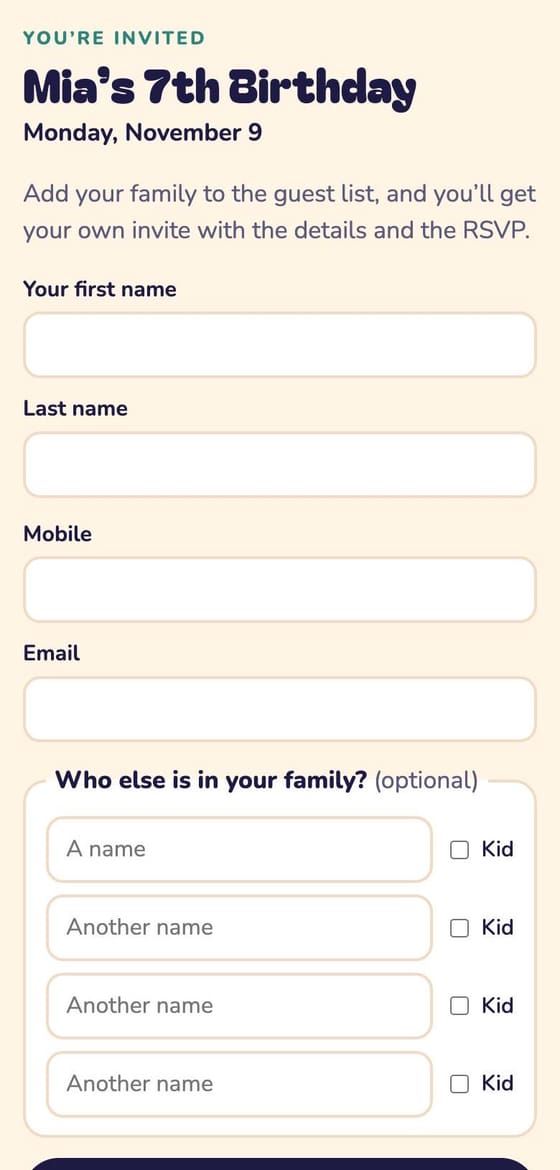
Each parent enters their name, mobile or email, and who else is in the family (ticking Kid for children), then taps Add us to the guest list. They land on your guest list and in the address book, and go straight to their own invite with the details and the RSVP.
Good to ask
- Tick Ask who’s coming by name and put “Any allergies?” in Ask each person, so the cake is safe for everyone.
- Say in the details whether siblings are welcome.
- If someone joins who was already in your address book, combine the two there.
Turn it off
When the list is complete, tap Turn it off. Families who already joined keep their own links. If the link spread further than you meant, Make a new link replaces it.
Next guide Send your invites →